What Is OCR and How Does It Make Your Scanned Documents Searchable?
19
August
2026
5:21
am
What Is OCR and How Does It Make Your Scanned Documents Searchable? Written by:
Brandon Harris, Smooth Photo Scanning Services
Scanning a document only helps you if you can actually find it later. A folder full of PDFs named “scan001,” “scan002,” and “scan003” is not much better than the paper box it replaced.
This is where OCR document scanning comes in. It turns a flat image of a page into text your computer can read, search, and copy, so you never have to dig through hundreds of files to find one invoice or one old letter again.
Today, we will explain what OCR actually is, how it works, and why it matters whether you are digitizing a shoebox of family papers or a filing cabinet of business records.
What Is OCR (Optical Character Recognition)?
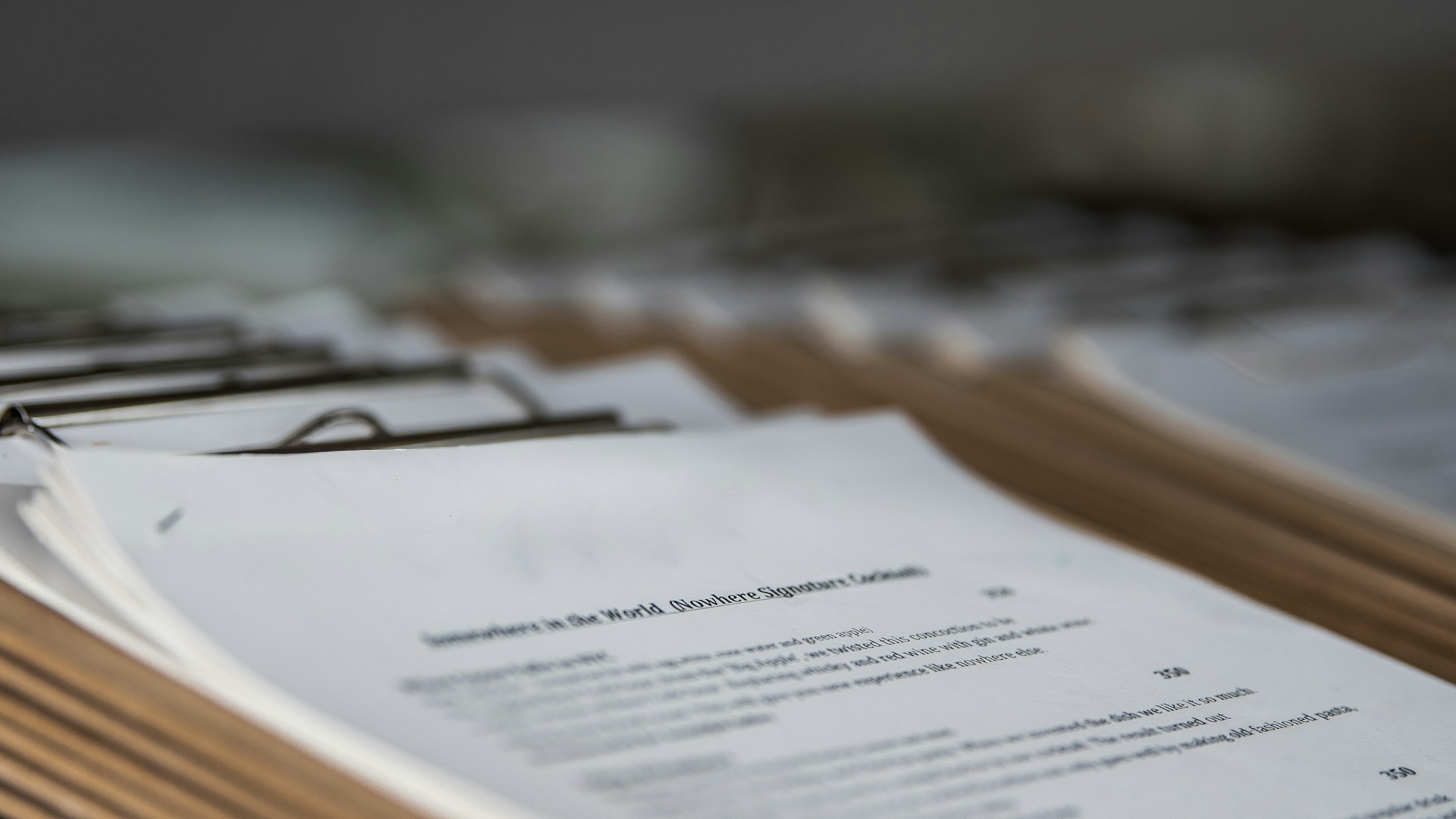
OCR stands for Optical Character Recognition. It is the technology that scans an image of text and converts it into actual, editable, searchable text. Without OCR, a scanned document is just a picture, like a photograph of a page.
Your computer sees pixels, not words. It has no idea whether that image shows a grocery list or a mortgage contract. Here is how optical character recognition scanning works in simple terms:
The scanner captures the document as a digital image.
The OCR software analyzes the shapes on the page and identifies individual letters, numbers, and symbols.
It matches those shapes against known character patterns using pattern recognition and machine learning.
The software converts the recognized characters into a text layer.
That text layer is placed either behind or within the image, so the page still looks like the original but now contains real, searchable text.
The result is a document you can search with Ctrl+F and copy text from directly. That single step is what separates a basic scan from a useful digital file, and it is exactly what it takes to make a scanned PDF searchable.
How To Use OCR for Personal Documents?
Most people do not think about OCR until they are staring at a pile of old letters, receipts, legal papers, or certificates and wondering how they will ever find anything again. Personal archives are often messy by nature.
Handwritten notes sit next to typed forms, and faded receipts sit next to important legal paperwork.
This is where optical character recognition scanning proves especially useful for family archives. OCR helps with personal collections in a few practical ways:
You can search a scanned birth certificate, marriage license, or property deed by name or date instead of flipping through binders.
Old family letters become text you can search for specific names, places, or events mentioned inside them.
Tax records, warranties, and receipts become easy to pull up when you need proof of purchase or a specific dollar amount.
Medical records and insurance papers become searchable, which matters a lot when you need something quickly.
Once these papers are turned into searchable scanned documents, you can store them safely, back them up, and share copies with family members without ever touching the fragile originals again.
OCR for Business: Invoices, Contracts, and Records Management
Businesses deal with a much higher volume of paper than most households. Think about how many invoices, contracts, purchase orders, HR files, and compliance records a mid-sized company generates in a single year.
Without OCR, all of that scanned paper is essentially locked away. OCR document scanning changes that for businesses in several ways:
Accounting teams can search invoices by vendor name, invoice number, or amount instead of opening file after file.
Legal and HR departments can pull up contracts or employee records by keyword in seconds.
Records management becomes far more efficient because staff spend less time searching and more time working.
Audits move faster because auditors can search for specific terms across thousands of pages at once.
The end goal for any business archive is searchable scanned documents that save employees time every single day.
If you want a deeper look at how this fits into a larger digitization project, this complete guide to document scanning walks through the full process from start to finish.
Accuracy Factors: Print Quality, Font Type, and Handwriting
OCR is powerful, but it is not magic. Accuracy depends heavily on the condition and format of the original document. A few factors matter more than most people expect.
Print quality: Crisp, high-contrast printed text scans far more accurately than faded, smudged, or low-resolution originals.
Font type: Standard fonts like Times New Roman or Arial are easy for OCR software to read. Decorative, stylized, or unusual fonts cause more recognition errors.
Paper condition: Stains, creases, tears, and yellowing can confuse the software and lead to missing or incorrect characters.
Handwriting: This is the biggest limitation. OCR handles printed text very well, but cursive or messy handwriting is much harder to recognize accurately, and results can vary a lot from document to document.
Searchable PDFs vs. Plain Text Extraction: Which Should You Choose?
Once OCR has done its job, you generally have two output options, and picking the right one matters.
Searchable PDF: This keeps the original image of the page exactly as it looked, but adds an invisible text layer underneath. You can search it, copy text from it, and index it in a filing system, all while preserving signatures, letterhead, and stamps.
Plain text extraction: This pulls out just the text and discards the image entirely. It is lighter in file size and useful for feeding data into another system, like a database or spreadsheet, but you lose all visual context.
For most personal and business archives, the searchable PDF is the better option. It is the format most scanning providers recommend when the goal is to make scanned PDFs searchable without losing the original look of the document.
How Professional Scanning Services Integrate OCR Into the Workflow
Doing OCR yourself with a home scanner and free software is possible, but it often comes with inconsistent quality, slow processing, and a steep learning curve, especially for large batches of documents.
Documents are sorted, prepped, and any staples, clips, or damage are addressed before scanning.
High-resolution scanning captures every page as a clean digital image.
OCR document scanning software processes each page to add a searchable text layer.
Quality control checks catch and correct recognition errors, especially on older or lower-quality originals.
Files are organized, named consistently, and delivered in the format you need, whether that is searchable PDF, text files, or both.
Get Searchable, Organized Digital Documents From Your Paper Files
Turning boxes of paper into a searchable digital archive is one of the most useful things you can do for your home or your business.
If you are ready to start, check out these tips to convert paper documents to digital before you begin, or reach out directly for help. Our team can make scanned PDFs searchable across your entire archive, so nothing gets lost again.
Every format, handled by hand
Prints, albums, slides, negatives and tapes – scanned and transferred in-house by our team in Lodi, NJ.
Does OCR work on documents in languages other than English?
Yes. Most modern OCR software supports dozens of languages, including ones with non-Latin alphabets like Chinese, Arabic, and Russian. Accuracy still depends on print quality and font type.
How long does OCR processing take for a large batch of documents?
This depends on volume and condition, but professional setups process large batches far faster than consumer software, often finishing thousands of pages in days rather than weeks.
What file formats can OCR software produce besides PDF?
Common outputs include Word documents, plain text files, and searchable TIFF images. Some workflows export data directly into spreadsheets or databases.
Is it safe to send sensitive documents like legal or medical records for OCR scanning?
Reputable scanning services follow strict security practices, including secure handling and controlled file access. Always ask a provider about their specific data protection measures beforehand.
Can OCR fix or improve a blurry or damaged document?
OCR itself does not repair the physical document, but scanning software often includes image enhancement tools that improve contrast and clarity before the OCR step, which can noticeably improve recognition accuracy on imperfect originals.
Your wedding album is proof of one of the happiest days of your life, and it deserves better than a dusty shelf or a damp box in the basement. If you...
 5.0★ from 201 Google reviews