DVD Disc Rot: How to Digitize Home Movies on DVDs Before It’s Too Late?
09
April
2026
7:22
am
DVD Disc Rot: How to Digitize Home Movies on DVDs Before It’s Too Late? Written by:
Brandon Harris, Smooth Photo Scanning Services
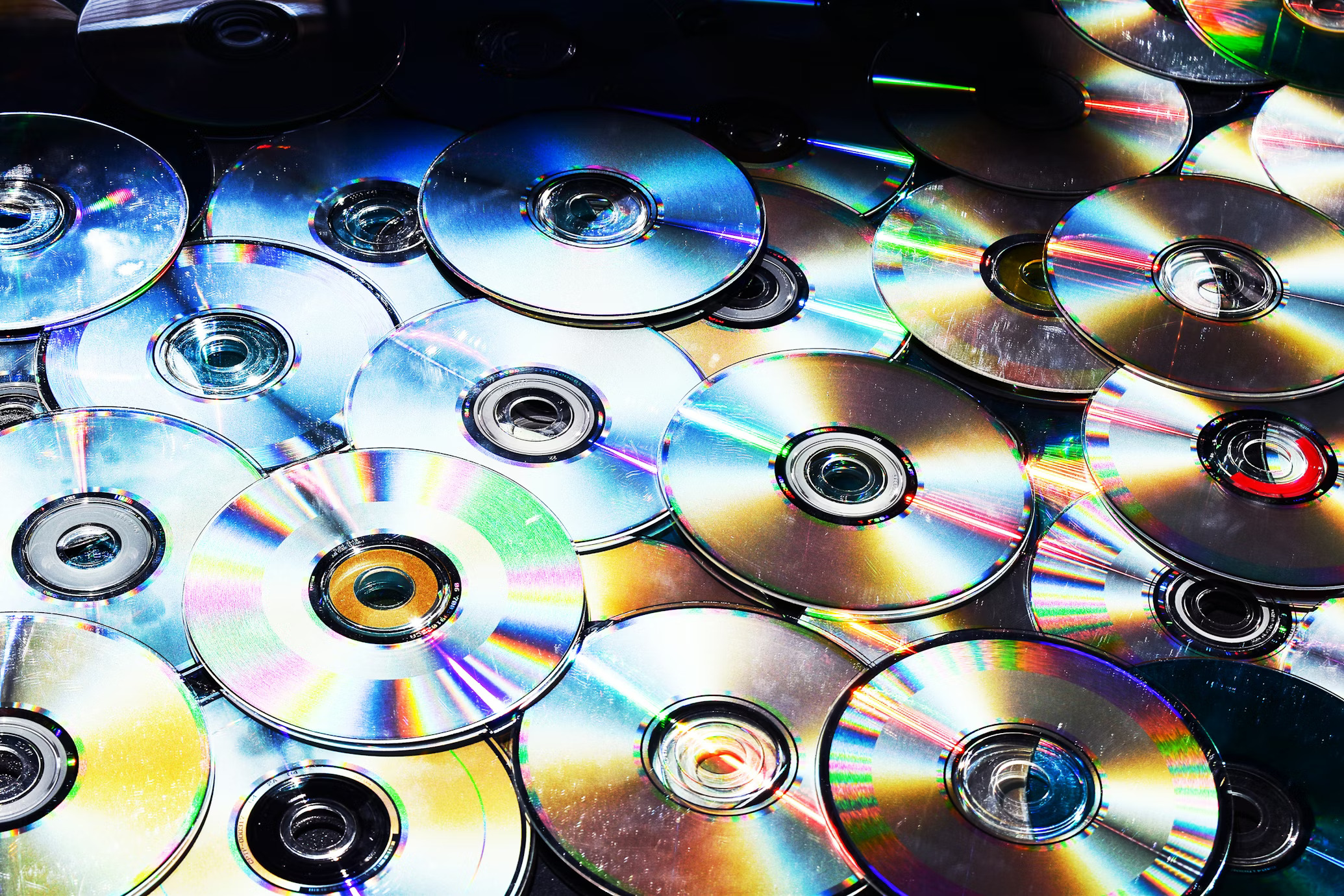
Your DVDs are dying. Not metaphorically. Not eventually. Right now, some of them are quietly corroding from the inside out, and the home movies burned onto them are disappearing frame by frame.
This is called DVD disc rot home movies deterioration, and if your family’s home movies live on DVDs, this is the most important thing you will read this year.
The good news is that you can still save them. But the window is closing faster than most people realize.
What Is DVD Disc Rot and Why Does It Happen?
DVD disc rot home movies loss, is the gradual physical and chemical breakdown of a DVD’s reflective layer. It is not a myth, a scare tactic, or an exaggeration. It is a well-documented degradation process that affects both commercially pressed DVDs and home-burned DVD-Rs.
The Anatomy of a DVD
A standard DVD is made up of several bonded layers:
Plastic base: A polycarbonate substrate.
Data layer: A data layer (a metallic foil, usually aluminum or gold).
Lacquer coating: A lacquer coating that seals and protects the metal
Label layer: A label layer on top.
The data on your disc is encoded as microscopic pits and lands on that metallic layer. When a DVD player’s laser reads those patterns, it reconstructs your video. When the metal corrodes, those pits become unreadable.
Why Does the Metal Corrode?
Disc rot DVD occurs for several well-understood chemical and environmental reasons:
Oxidation: Oxidation enters through micro-cracks or pin-holes in the lacquer layer and reacts with the aluminum or silver reflective layer.
Humidity: Moisture accelerates the oxidation process dramatically.
Delamination: The bonded layers can separate over time, allowing air infiltration.
Manufacturing defects: Low-quality discs, especially cheap DVD-Rs burned at home, often have thin or uneven lacquer coatings, which fail faster.
UV exposure: Ultraviolet light degrades both the polycarbonate and the organic dye layer used in recordable DVDs.
Physical handling: Fingerprints, scratches, and improper storage all accelerate breakdown.
How Long Do DVDs Actually Last?
This is the question everyone asks, and the answer is genuinely uncomfortable. How long do DVDs last depends on several variables, including disc type, storage conditions, manufacturing quality, and whether the disc has ever been exposed to heat or light. There is no single honest answer, but here is what the research shows.
DVD Lifespan by Type
DVD Type
Estimated Lifespan
Risk Level
Pressed (commercial) DVD
25–100 years (ideal conditions)
Low to Medium
DVD-R (home burned, quality brand)
10–25 years
Medium
DVD-R (cheap, no-name brand)
3–10 years
High
DVD+R
10–30 years
Medium
DVD-RW / DVD+RW (rewritable)
5–15 years
High
Mini DVD-R (camcorder)
5–15 years
High
How to Test Your DVDs for Early Disc Rot (Light Test, Playback Errors)
The earlier you catch disc rot, the better your recovery odds. Here are the most practical ways to test your discs at home before you lose anything.
#1 The Light Test (Visual Inspection)
Hold the disc up to a bright light source, like a window or lamp, which works well.
Look at the disc from the data side (the non-label side).
Tilt and rotate it slowly.
Look for any of the following warning signs of disc rot DVD:
Visible pin-holes: Small dots where you can see light through the disc clearly.
Discoloration: Bronze, gold, or greenish tints spreading from the edges or center.
Milky hazing: Cloudy patches across the reflective surface.
Separation rings: Concentric circles where the layers appear to have lifted.
Disc Condition
Appearance
Healthy disc
Uniformly silver or gold with no visible light transmission
Rotting disc
Pin-holes, bronzing, or delamination zones are visible under light
#2 The Playback Test
Even discs that look fine visually may have data errors. Run the disc through your DVD player and watch for:
Pixelation blocks (macroblocking) during playback.
Audio dropouts or sudden silence.
Freezing frames at the same point every time.
Disc not recognized by the player at all.
Chapters that skip or cannot be accessed.
#3 Using a Computer to Check Error Rates
Software like Nero DiscSpeed (Windows) or DVDisaster can scan a disc and report the number of read errors per sector. This gives you a quantitative picture of how much data has already been lost or damaged, even before visible rot appears.
Warning Signs That a DVD Is Failing
Beyond the light test, here are the early and late-stage indicators that a DVD is heading toward permanent failure:
#1 Early Warning Signs
The disc takes longer than usual to load.
Occasional pixelation that clears up on its own.
The disc works in some players but not others.
Slight discoloration visible on the outer edge of the data layer.
#2 Late-Stage Failure Signs
Consistent freezing: Consistent freezing at specific timestamps.
Unplayable segments: Large portions of the video that are unplayable.
Physical damage: Visible pin-holes, peeling, or delamination when held to light.
Disc not recognized: The disc is not recognized by any player or computer drive.
Label side damage: The label side shows bubbling or separation.
MYTH BUSTED: “IF THE DISC LOOKS FINE, THE DATA IS FINE”
Myth: Replace myth text here.
FALSE. DVD disc rot home movies, and data loss can destroy data sectors long before any visible damage appears on the surface. The organic dye layer on DVD-Rs degrades chemically before it shows up to the naked eye. Regular playback testing is the only way to catch early-stage disc rot before it reaches critical failure.
DIY Methods for Extracting Video From Failing DVDs — HandBrake, VLC
If your DVDs are showing early signs of disc rot DVD but are still partially readable, you may be able to extract the video yourself using free software. Here is how to do it.
Method 1: VLC Media Player (Quick and Simple)
VLC is a free, open-source media player that can also rip DVDs directly.
Insert the DVD into your computer’s optical drive.
Open VLC and go to Media > Convert/Save.
Click the Disc tab and select your DVD drive.
Choose your output format (MP4 is recommended).
Click Start and let VLC read the disc.
Method 2: HandBrake (Better Quality Control)
HandBrake is a free, powerful video transcoder that works well for convert DVD to digital files.
Download and install HandBrake from handbrake.fr.
Insert the disc and open HandBrake.
Select your DVD drive as the source.
Choose a preset like H.264 MP4 or H.265 MP4 is recommended.
Set your output destination and click Start Encode.
Method 3: DVDisaster (For Damaged Discs)
DVDisaster is specifically designed to recover data from failing optical media. It reads all readable sectors first, then maps the unreadable ones. It works best when combined with a second attempt after rotating the disc or cleaning it.
Basic cleaning before ripping:
Use a clean, lint-free cloth.
Wipe from the center outward in straight lines and never in circles.
Use distilled water or isopropyl alcohol for stubborn smudges.
Never use paper towels or abrasive materials.
DIY Limitations at a Glance
Scenario
VLC
HandBrake
DVDisaster
Disc plays fine
Works well
Works well
Works well
Minor surface scratches
May glitch
Usually handles
Good recovery
Moderate disc rot
Likely to fail
Partial recovery
Best option
Severe disc rot
Fails
Fails
Partial only
Disc not recognized
Cannot read
Cannot read
Cannot read
When a Professional Video Transfer Service Is Needed
DIY methods have real limits. Once disc rot reaches a moderate or advanced stage, consumer software and home optical drives cannot recover the data reliably. That is when a professional video transfer service becomes necessary to digitize DVDs before they fail completely.
What Professionals Can Do That You Cannot?
Superior hardware: Professional optical drives with better error-correction logic and stronger lasers that can read degraded discs that consumer drives reject.
Deep recovery: Sector-by-sector imaging that recovers partial data from damaged areas.
Output capture: Real-time capture from the video output of a professional DVD player directly to a digital file, bypassing the data layer entirely.
TBC filtering: TBC (Time Base Correction) filtering that stabilizes jitter, corrects playback errors, and improves the resulting video quality.
Format flexibility: Multiple-format outputs, including MP4, MOV, AVI, and Apple ProRes for professional use.
💡 Pro Tip
If a disc fails to be recognized by your computer but still plays (even partially) in a standalone DVD player, a professional service can capture directly from that player’s video output. This is often the last viable recovery method before the disc is gone for good.
What Smooth Photo Scanning Offers?
At Smooth Photo Scanning (smoothphotoscanning.com), we help families preserve home movies DVD collections before disc rot makes recovery impossible.
Our process includes:
Real-time capture: Real-time capture using professional video decks with IEEE 1394, SDI, or component output connections.
Uncompressed capture: Direct digital capture to raw, uncompressed AVI files before transcoding.
TBC filtering: TBC filtering to eliminate jitter and stabilize playback errors.
QA review: Quality assurance review of every video file before delivery.
Flexible formats: Output in MP4, MOV, AVI, or Apple ProRes — your choice
Custom naming: Custom file naming based on your disc labels.
Delivery options: Delivery via Flash Drive, Hard Drive, or DVD.
Free shipping: Free shipping on orders over $250.
Free pickup: Free pickup for orders over $500 in the NYC Tri-State Area.
We have over 25 years of experience in professional video digitization. Whether you have one DVD with a child’s first birthday or an entire shelf of family reunions, graduations, and holiday memories, we treat every disc with the care it deserves.
Best Formats to Save Your DVD Content In — MP4, MKV, H.265
Once your DVD content is extracted, choosing the right output format matters. Not all digital files are equal, and the format you choose determines how compatible, future-proof, and storage-efficient your files will be.
Format Comparison
Format
Compatibility
File Size
Quality
Best For
MP4 (H.264)
Universal
Medium
Very Good
Sharing, streaming, everyday use
MP4 (H.265/HEVC)
Wide (modern devices)
Small
Excellent
Long-term storage
MKV
Wide (PC/Mac)
Varies
Excellent
Archival, multiple audio tracks
MOV
Apple devices, Pro
Medium-Large
Excellent
Mac users, video editing
Apple ProRes
Mac, professional
Very Large
Lossless
Professional editing
AVI
Older systems
Large
Good
Legacy compatibility
Which Format Should You Choose?
For most families who want to preserve home movies DVD content:
MP4 (H.264): MP4 (H.264) is the safest, most universal choice. It plays on every device from smart TVs to smartphones to laptops without needing any conversion.
MP4 (H.265): MP4 (H.265) delivers the same quality as H.264 at roughly half the file size. Use this if storage space is a concern, but check that your playback devices support it.
MKV: MKV is excellent for archival purposes because it can contain multiple audio tracks, subtitles, and chapter markers in a single file.
💡 PRO TIP: THE 3-2-1 BACKUP RULE
Always keep at least two copies of your digital files in two different locations. The gold standard:
3 copies of the data, on 2 different media types, with 1 stored offsite or in the cloud.
Digitizing is only safe when the files are properly backed up.
What About DVD Resolution?
DVDs natively store video at 720×480 pixels (NTSC) or 720×576 pixels (PAL). This is standard definition. When you convert DVD to digital files, you capture the content at its original resolution.
There is no process that authentically increases the resolution beyond what was recorded. Any upscaling to 1080p or 4K is an interpretation, not a recovery of lost detail. A professional transfer captures the video at full native resolution with no additional quality loss.
Convert Your DVDs to Digital Files Before It’s Too Late
DVD disc rot home movies loss is not a hypothetical future problem. It is happening right now, in attics, basements, and storage closets across America. Every month you wait is a month closer to permanent loss.
The discs you burned in 2002, 2005, or 2008 are between 17 and 23 years old. Many cheap DVD-Rs from that era had an expected lifespan of 10 to 15 years under good conditions. Under typical home storage, some of them are already past their reliable lifespan.
Whether you choose to digitize DVDs before they fail yourself with HandBrake and VLC, or trust a professional service to handle it, act now. The cost of digitization is small compared to the cost of permanent loss.
No. Once the reflective metal layer or organic dye layer of a DVD has physically degraded, that degradation cannot be reversed. There is no chemical treatment or resurfacing process that restores lost data. The only option is to extract whatever data remains before additional deterioration occurs.
Does keeping DVDs in their cases prevent disc rot?
Cases help, but they do not prevent disc rot entirely. Jewel cases and hard plastic DVD cases provide physical protection and reduce exposure to light and dust.
However, they do not control humidity or temperature, which are major drivers of disc rot DVD. Archival storage in a cool (under 65 degrees F), dry (30 to 50% relative humidity), and dark environment is the gold standard.
Do DVDs stored digitally on a computer also degrade?
Digital files stored on hard drives or SSDs do not suffer from disc rot, but they have their own failure risks. Hard drives fail mechanically over time, typically within 3 to 10 years of heavy use.
SSDs can lose data if left unpowered for extended periods. This is why redundant backups using the 3-2-1 rule are essential for long-term to preserve home movies DVD.
What is the difference between DVD-R and DVD+R for disc rot?
DVD-R and DVD+R are different recording standards created by competing industry consortia.
For longevity, DVD+R discs generally have a slight edge in data accuracy during recording due to a more precise tracking method, which may result in marginally better long-term durability.
However, the brand and manufacturing quality of the disc matter far more than the plus or minus designation. Both formats are susceptible to DVD disc rot home movies degradation.
Can I use cloud storage to preserve my home movie DVDs?
Yes, cloud storage is an excellent part of a backup strategy to preserve home movies DVD content.
Services like Google Photos, Apple iCloud, Amazon Photos, and Backblaze all offer options for video storage. The key limitation is upload time and ongoing storage costs for large libraries. Cloud storage is best used as one part of a multi-location backup plan, not the only copy.
Are Blu-ray discs also vulnerable to disc rot?
Blu-ray discs use a hard coating that makes them more resistant to surface scratches and some forms of disc rot compared to DVDs.
However, they are not immune. Delamination and edge rot have been documented in Blu-rays, and their long-term archival durability is still being established since the format is only about 20 years old.
The same principle applies: digitize DVDs before they fail, and apply the same logic to Blu-ray.
Your wedding album is proof of one of the happiest days of your life, and it deserves better than a dusty shelf or a damp box in the basement. If you...
 5.0★ from 201 Google reviews