How to Write Captions for Your Old Family Photos And Why Does It Matters?
25
May
2026
10:43
am
How to Write Captions for Your Old Family Photos And Why Does It Matters? Written by:
Brandon Harris, Smooth Photo Scanning Services
A photo without context is a puzzle. A caption turns it into a story.
Knowing how to write photo captions for family history is one of the most valuable skills any family archivist can develop, because the context that makes a photo meaningful is often only one or two people away from being lost forever.
The process works best when you start with clean, high-quality scans. If your collection is still in boxes, getting your photos digitized professionally gives you organized digital files that are easy to work through and caption systematically.
Once you have those files, here is how to make them meaningful.
Why Are Photo Captions as Important as the Photos Themselves?
Think about the unlabeled photos in your family’s collection right now. Chances are there is at least one photo of people you cannot identify, in a place you cannot name, from a decade you can only guess at. Those photos are interesting, but they are incomplete.
Writing photo descriptions and adding captions is how you learn to preserve the stories behind the images, not just the images themselves.
Family history captions for digitized photos transform a collection of JPEGs into a navigable archive that future generations can actually use.
They also help with organizing photos chronologically, attaching images to family tree entries, and sharing collections with relatives who do not know the context.
The 5 Elements of a Great Photo Caption
Good captions answer the same questions a journalist would ask. This is the core of how to write photo captions for family history that hold up for generations:
Who: Name everyone in the photo, left to right or front to back. Include maiden names for women where relevant.
What: What is happening? Birthday, wedding, family gathering, or just a regular Sunday afternoon?
When: The year is the minimum. Month and day are a bonus. If you are not sure, estimate. ‘circa 1965’ is more useful than nothing.
Where: Location, as specific as you can get. City and state at minimum; venue name or street address if you know it.
Why: Any context that explains why this moment was captured. What makes it significant to your family?
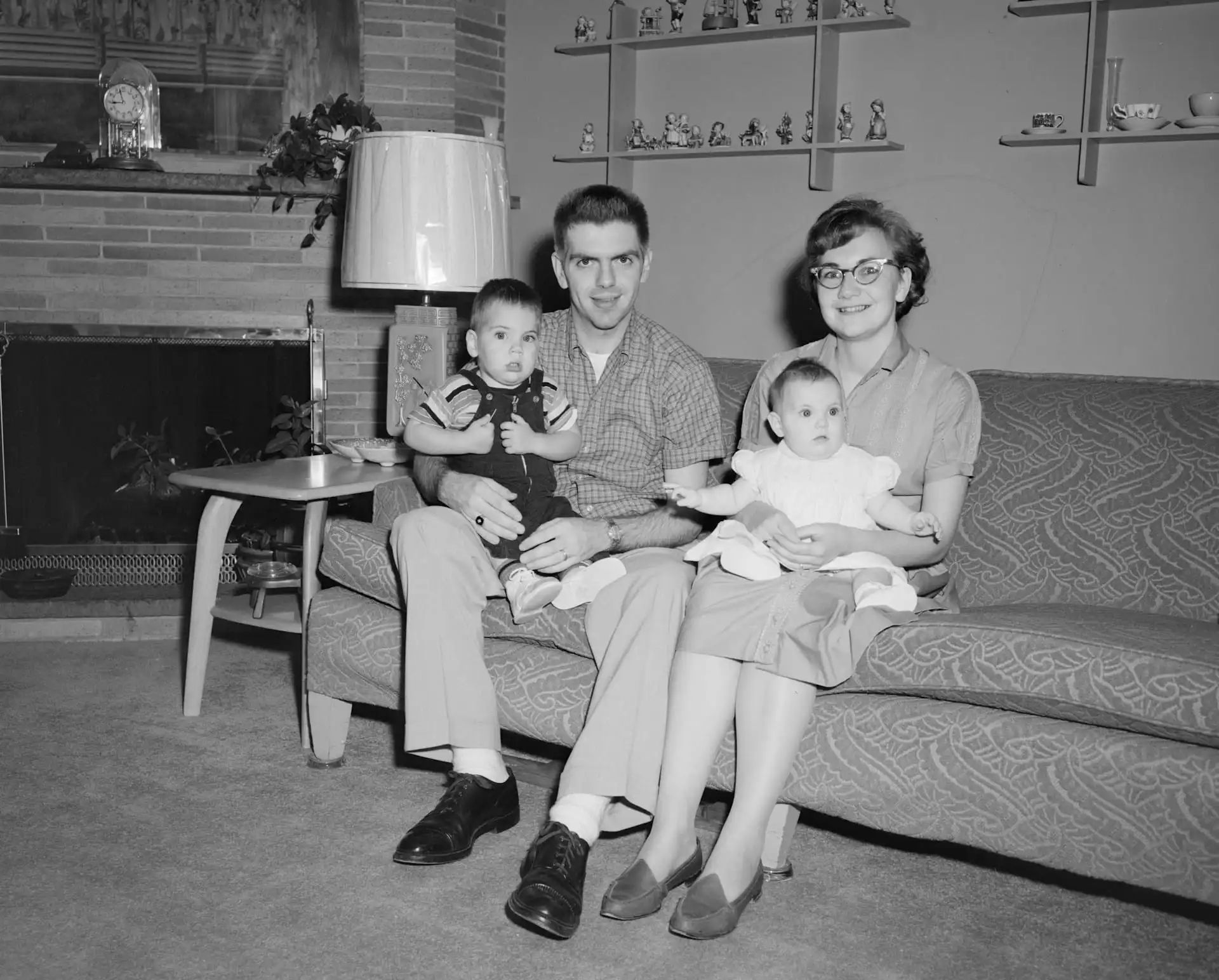
Example: “Margaret and James Henderson at their 25th wedding anniversary party, July 1958. Taken at the family home at 142 Elm Street, Springfield, Ohio. Margaret baked the cake herself.”
How to Caption Photos When You Don’t Know the Details?
Not knowing the full story is not a reason to leave a caption blank. When you are captioning old photos with incomplete information, partial details are still valuable:
Use ‘circa’ for approximate dates: ‘circa late 1940s’ or ‘probably 1953.’
Note uncertainty openly: ‘Unknown woman, possibly a relative on Mom’s side’
Record what you do know: ‘Taken at a beach, possibly New Jersey, likely early 1960s.’
Ask before it is too late. The best source of caption information is often an older relative who may not be around for much longer.
Where to Store Your Captions So They Stay With the Photo?
This is where most people get stuck. Writing captions in a notebook is better than nothing, but the goal is to have the caption travel permanently with the digital file. Here are the main approaches:
EXIF/IPTC metadata embedding: Most image editing programs, including free options like digiKam and Google Photos, let you embed captions directly into the image file’s metadata. The caption becomes part of the file and travels with it wherever it goes.
Sidecar files: A sidecar file is a companion text file saved alongside the image with the same filename. Simple and portable, though you need to keep the pair together.
Spreadsheet catalog: Create a Google Sheet or Excel file with one row per photo, including the filename and all caption details. The easiest approach for large batches.
Platform description fields: If you use Ancestry, MyHeritage, or Google Photos, use the built-in description fields. Just be aware that the information lives on that platform rather than inside the file itself.
Caption Formats for Different Sharing Methods
How you share photos affects how you should format your captions. Photo caption ideas vary by context:
For photo books: Keep captions concise, one to two sentences. The image is the main event.
For family history platforms: Go into as much detail as the platform allows. These are built exactly for this kind of information.
For shared cloud albums: Use the description field to include names, dates, and context. Keep it conversational since you are writing for family, not a museum.
Creating a Caption Workflow When You Have Hundreds of Photos
When you need to label old photos at scale, a system saves you from burnout. Here is a workflow that actually works:
Start with photos you know best, not the ones that stump you.
Set a daily goal of 10 to 20 captions rather than trying to finish everything at once.
Flag mystery photos in a separate folder for a later session when you can involve relatives.
Use a spreadsheet as your master log to track progress.
How to Involve Living Relatives in the Captioning Process?
Your best captioning resource is the people who were there. Set up a simple shared album and add the mystery photos, then share the link with older relatives and ask them to leave comments with anything they remember. Even a vague detail helps.
A photo identification call works even better. Get on a video call, share your screen, and walk through old photos with a grandparent or older relative.
Record the call if they are comfortable with it. Their commentary during that session is itself a piece of family history, and it is the best source of family history captions for digitized photos you will ever find.
Get Your Photos Scanned in High Resolution — Ready to Caption and Share
Learning how to write photo captions for family history is much easier when you have clean, well-organized digital files to work with.
What software do I use to add captions to photo files?
Free options include digiKam (Windows and Mac), Photos on Mac, and Google Photos. Adobe Lightroom is the premium choice for anyone managing a large archive seriously.
Should I caption every photo, or just the important ones?
Ideally, every photo, but prioritize older images, group shots, and photos of unique events where context is hardest to recover later.
What if the caption gets separated from the file?
Embed captions into the IPTC metadata fields wherever possible. That way, even if the file is moved or renamed, the caption travels with it.
Your wedding album is proof of one of the happiest days of your life, and it deserves better than a dusty shelf or a damp box in the basement. If you...
 5.0★ from 201 Google reviews