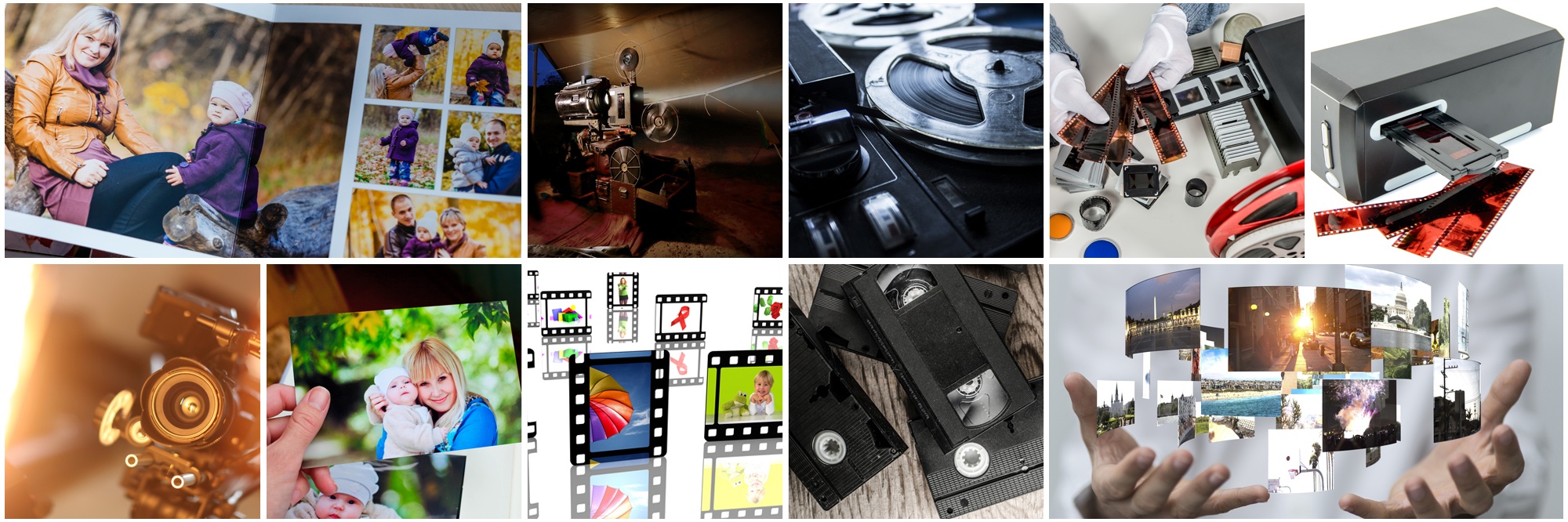
Scanning old photos is one of the best ways to preserve your family history. But creating digital copies is only the first step. If you keep those files in just one place, you could still lose them because of accidental deletion, hardware failure, theft, ransomware, or a natural disaster.
That is why every family should follow the 3-2-1 backup rule that experts recommend. It is a simple method that keeps your memories safe without making your life complicated.
If you are just getting started with storing and accessing your digital media, learning the 3-2-1 rule is one of the smartest things you can do. It gives you a practical plan instead of relying on luck.
Today, you’ll learn exactly how the rule works, how to set it up, and which mistakes to avoid so your photo collection stays protected for years to come.
What is the 3-2-1 backup rule?
The rule is quite simple, Keep:
- 3 copies of every important photo
- 2 different types of storage media
- 1 copy stored offsite
This approach protects the digital photo collection from almost every common risk. If one copy becomes damaged, deleted, stolen, or corrupted, you still have other versions ready to use.
Think of it as insurance for your memories.
A good redundant photo storage strategy does not depend on a single device or service. Instead, it spreads your files across multiple locations so one problem cannot wipe everything out.
Copy 1: Keep your primary working copy on your computer or NAS
Your first copy is the one you use every day. Most people store their scanned photos on:
- A desktop computer
- A laptop
- A Network Attached Storage (NAS) device
- A home media server
This is the version you’ll organize, edit, rename, and share with family. To make this copy easier to manage:
- Create folders by year, family member, event, or vacation.
- Use clear file names instead of random numbers.
- Leave the original scan untouched before editing.
- Add basic metadata such as dates, locations, and names whenever possible.
Copy 2: Store another copy on an external drive
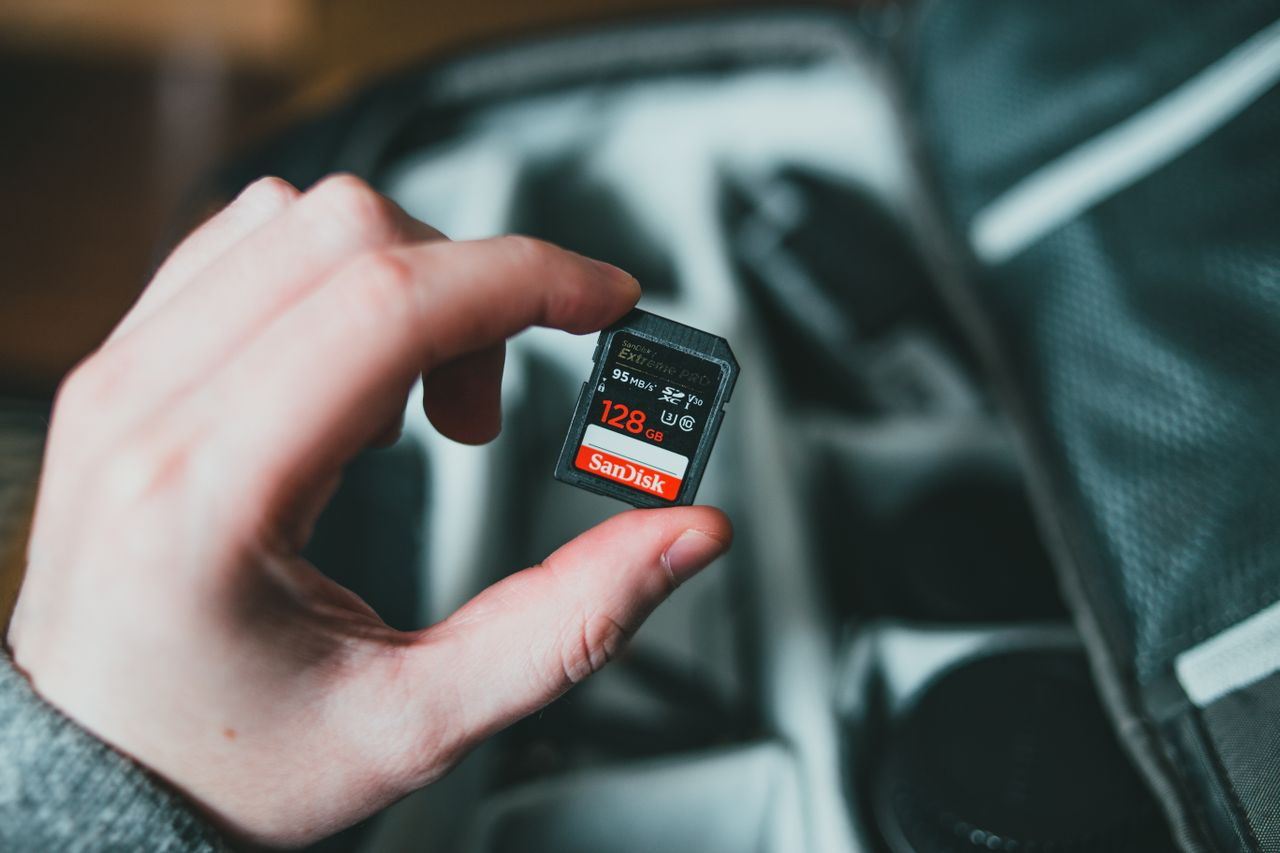
Your second copy should live on a completely separate storage device. Good choices include:
- External hard drives
- Solid-state drives (SSDs)
- High-capacity USB drives
- Archival storage devices
Store this backup somewhere away from your computer. For example:
- A different room
- A fire-resistant safe
- A locked cabinet
- A trusted family member’s home
This helps backup digitized photos safely even if your primary computer fails. A few tips:
- Label your backup drives.
- Test them every few months.
- Replace aging drives before they fail.
- Disconnect them after the backup finishes to reduce ransomware risk.
Copy 3: Keep one backup in the cloud
The final piece of the system is offsite storage. Cloud services automatically keep another copy of your files somewhere outside your home. Popular options include:
- Google Drive
- Apple iCloud
- Microsoft OneDrive
- Dropbox
- Backblaze
If your home experiences a fire, flood, burglary, or severe storm, your cloud copy remains available.
If you are new to online backups, learning cloud storage basics for beginners can help you choose the service that fits your needs.
Cloud storage should never replace local backups. Instead, it completes your redundant photo storage strategy by protecting against disasters that affect your physical devices.
Set up automatic backups so you never forget
The biggest mistake people make is planning to back up later. Later often becomes never. Instead, automate the process. Many operating systems and cloud services include automatic backup features. A simple routine could look like this:
- Save scanned photos to your computer.
- Automatically copy them to an external drive every evening.
- Upload new files to cloud storage in the background.
- Check backup reports once each month.
- Test restoring a few files every few months.
Automation removes the need to remember every backup manually and helps protect your digital photo collection with very little ongoing effort.
What are some common backup mistakes to avoid?
Even people with digital copies sometimes lose priceless memories. Here are some of the biggest mistakes:
1. Using only one USB drive
USB drives are convenient, but they can fail, become corrupted, or get misplaced.
2. Depending on only one cloud account
Cloud providers are reliable, but accounts can be locked, hacked, or accidentally deleted.
3. Never checking backups
A backup you cannot restore is not a backup. Open a few files occasionally to confirm everything still works.
4. Keeping every backup in one location
If your computer, external drive, and USB stick all sit on the same desk, one disaster can destroy all of them.
5. Forgetting about physical risks
Digital files help preserve memories, but your original photographs still matter. Before digitizing, take steps toward protecting your photos from flood damage and other environmental hazards whenever possible.
Why does the 3-2-1 method work so well?
The beauty of the system is its simplicity. It protects you from:
- Hard drive failures
- Accidental deletion
- Computer theft
- Fire damage
- Flood damage
- Malware and ransomware
- Hardware corruption
Following the 3-2-1 backup rule for photos dramatically reduces the chances of losing your family’s history. More importantly, it gives you peace of mind knowing your memories are stored in multiple safe places.
Digitization comes first. Backups come next.
Before you can create backups, you need high-quality digital files.
Professional digitization services from Smooth Photo Scanning make it easier to preserve printed photos, slides, negatives, and other treasured memories with clear, high-resolution scans. The service can return your digitized files on your preferred media, making it easy to begin your own backup routine afterward.
Once your files are in your hands, following the 3-2-1 method helps backup digitized photos safely for many years to come.
Final thoughts
Digitizing your photos is an investment in your family’s future. Backing them up is what keeps that investment secure.
You do not need expensive equipment or advanced technical skills to get started. Three copies, two storage types, and one offsite backup are enough to protect your digital photo collection against most everyday risks.
Start with one folder today. Once your backup system is running automatically, you’ll spend less time worrying and more time enjoying your memories.